→ Click to View Subsections ←
BOAC (Baby of all Cases)
BOAC, the MOAC’s little brother, powers streams that don’t need (or can’t have) the full MOAC. It lacks a replay machine, a hub, an external switcher (though you could theoretically use it), and some of the niceties of the MOAC. It is, however, still a powerful machine, and you can easily produce a great stream with it nonetheless.
Setting up During a Stream
[TODO: Pictures]
- Take off the front and back panels.
- Find the power plug for Wirecast (already connected in the case), and plug it in. It should be labeled TO WIRECAST on the plug.
- Plug in wirecast monitor and peripherals (mouse, keyboard). Don’t forget monitor power.
- Plug in the barrel plug (power) for the switcher. It should be hanging just below its port, we unplug it so it doesn’t get crushed when we close the case.
- Find the UPS power plug in the back, and plug it into a surge strip. It should be labeled TO WALL on the plug.
- On the UPS (front side, bottom), open up the little clear plastic cover and press the power button. This turns BOAC on.
- If it doesn’t start up with the UPS, turn Wirecast on (open up the front panel, flip the black switch).
- Plug wall ethernet into the WAN1 port on the network switch.
- Plug in ethernet for Wirecast, Switcher, and the Laptop.
- The cables for this should already be connected to the network switch. Simply find the loose ethernet ends and plug them into wirecast/switcher.
- Connect the PROG SDI BNC port on the switcher (right side) to the Wirecast input BNC port (wirecast only has one BNC port, it’s that one).
- Plug cameras into Switcher (left side, read labels).
- Reference Wirecast operating for Wirecast software setup.
- Operate Switcher on laptop
Tearing Down
Tearing down is effectively the same as setting up but in reverse, but please keep in mind that:
- You must unplug the power for:
- Switcher
- Wirecast (after shutting down properly from software or front panel)
- You must disconnect the program SDI going between Switcher and Wirecast
- You must disconnect ethernet for Wirecast
We do this so that the back case does not crush these connections when we close it.
General Layout and Case Setup
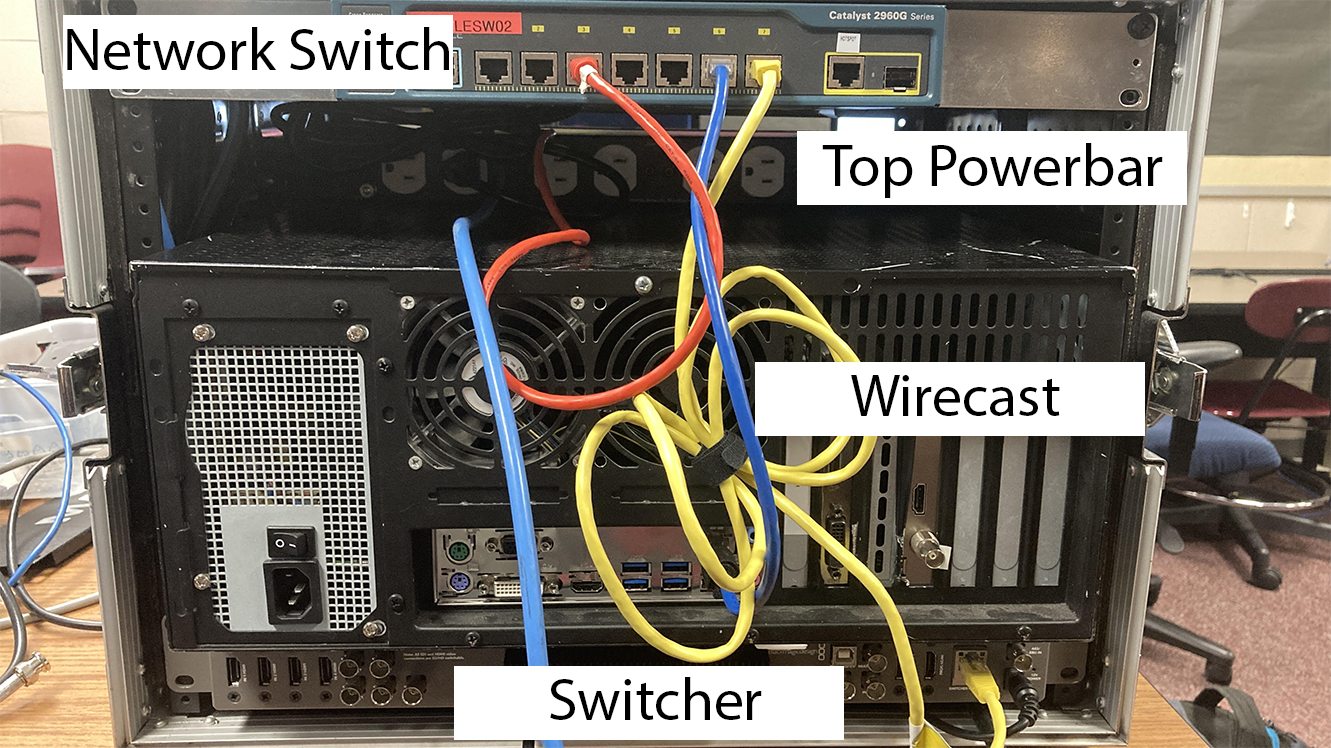
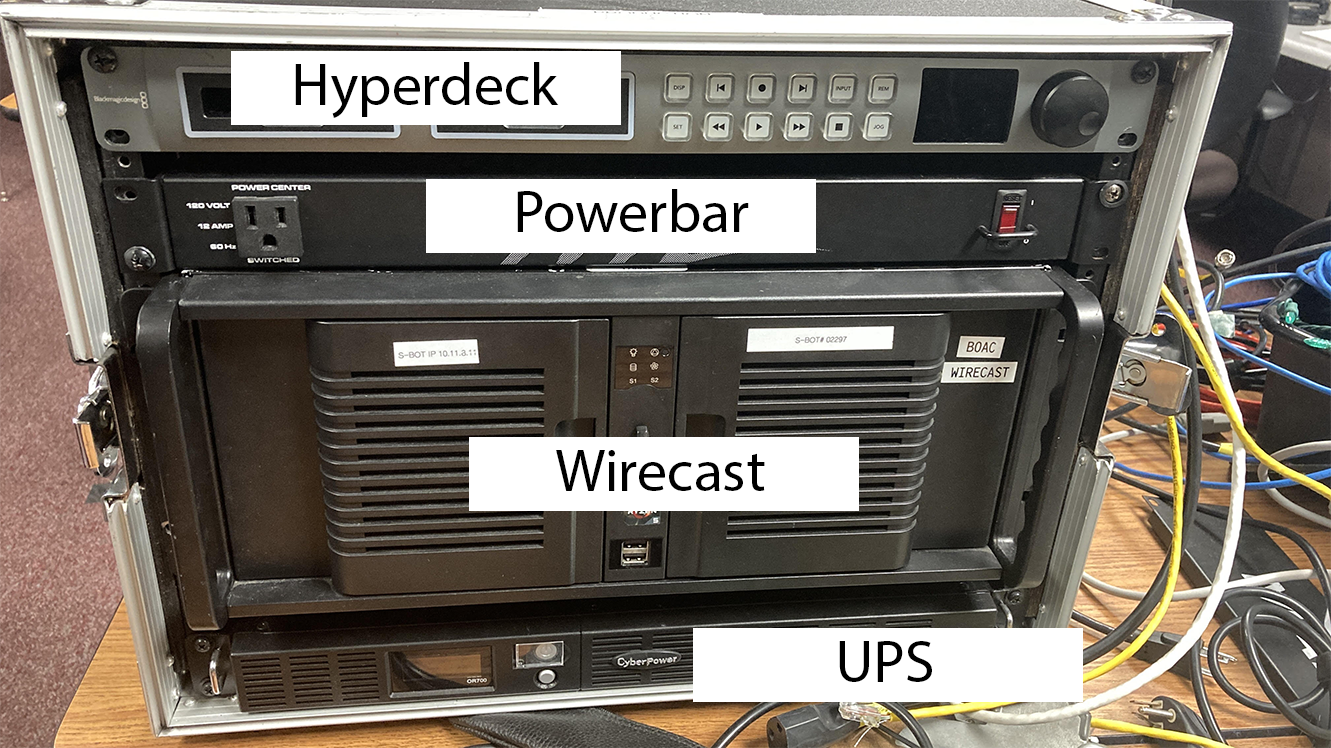

Above you can see the internal connection layout of the BOAC. See Connections for more information on what you need to connect.
Connections
To get the BOAC up and running, you will need to connect:
- Network (detailed above in Setting up During a Stream)
- Cameras to Switcher
- Power to Wirecast (we unplug this because it doesn’t fit in the case).
- Switcher PROG OUT to Hyperdeck (this is the light blue cable coming from the top)
- Switcher PROG OUT to Wirecast SDI In
Switcher - ATEM TV Studio
Everything is effectively the same as the MOAC switcher, just instead of using the physical switcher control surface you use the virtual one on the laptop.
Note that you can use the number keys to switch cameras.